

Optimizing a Figma Project Using a Banking App as an Example
We’ll explain how we optimized and sped up large Figma files by three times. This effort was prompted by slow and sometimes unopenable files on the project team. The problem was particularly noticeable for team members with less powerful hardware: files were loading for five to ten minutes.
We’ll explain how we optimized and sped up large Figma files by three times. This effort was prompted by slow and sometimes unopenable files on the project team. The problem was particularly noticeable for team members with less powerful hardware: files were loading for five to ten minutes.
During our search for a solution, we encountered some limitations and bugs in Figma that are useful to know in advance and which we will describe in detail below.
This article will help avoid fundamental mistakes when developing design systems. The material will be especially useful for designers, developers, and businesses working on projects with over five hundred layouts.
We are Mish studio, primarily focused on website and mobile app design. Over time, we have worked on large projects, particularly in the banking sector. In this case, the client tasked us with designing two mobile apps for SBI: a “for adults” banking app and a separate banking app “for kids,” which included a full account, parental tasks, rewards, and saving for goals. The apps were developed for two platforms.
After six months of work, the “adult” app alone had over six hundred screens per platform. That’s when we faced a problem: everyone involved in the project — developers, analysts, testers — noticed that Figma files were slowing down. Specifically, files opened slowly, lagged when zooming, and sometimes even crashed. Even designers on MacBook Pros experienced difficulties. For example, copying ten frames could take about a minute: you select them, press ⌘+C, and wait — Figma freezes during this time. If unlucky, a “You run out of memory” message appeared. Then, you had to restart Figma and copy frames one by one.

After searching online and on the Figma website, we identified the cause and figured out how to solve the problem. Here’s the article that helped us.
Two main causes of slowdowns:
- Too many layouts in a single file.
- Master components built with many hidden layers.
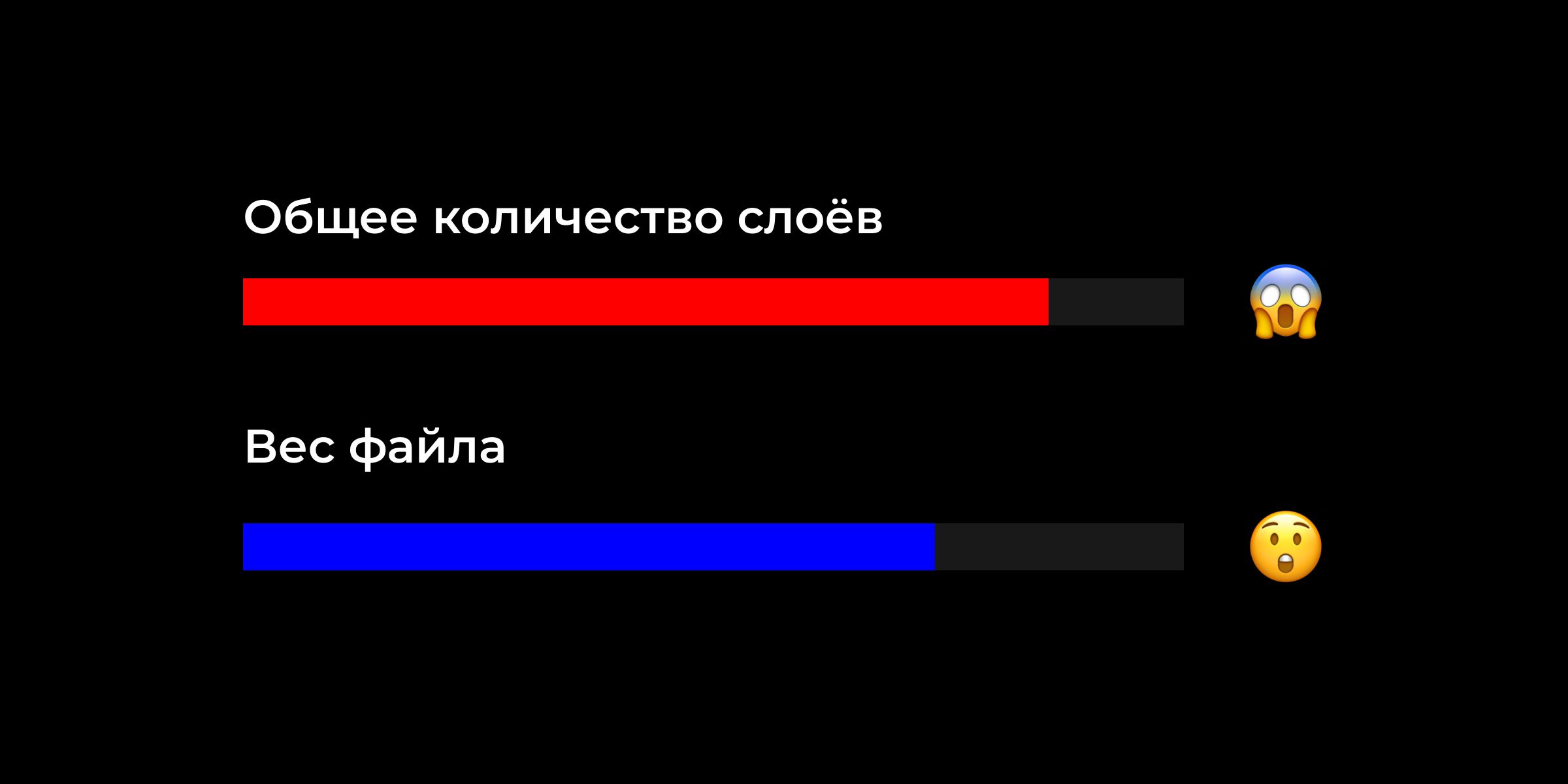
Both of these significantly impacted key file metrics: memory usage and total layer count. Let’s look at each point in more detail.
Cause 1: Too many layouts in one file
The “adult” app design consists of three files:
- A file with iOS layouts and components
- A file with Android layouts and components.
- A file with shared components, icons, and graphics.
There are also two files for the “kids” app, but we didn’t optimize them because these files run quickly — they contain fewer than five hundred layouts.
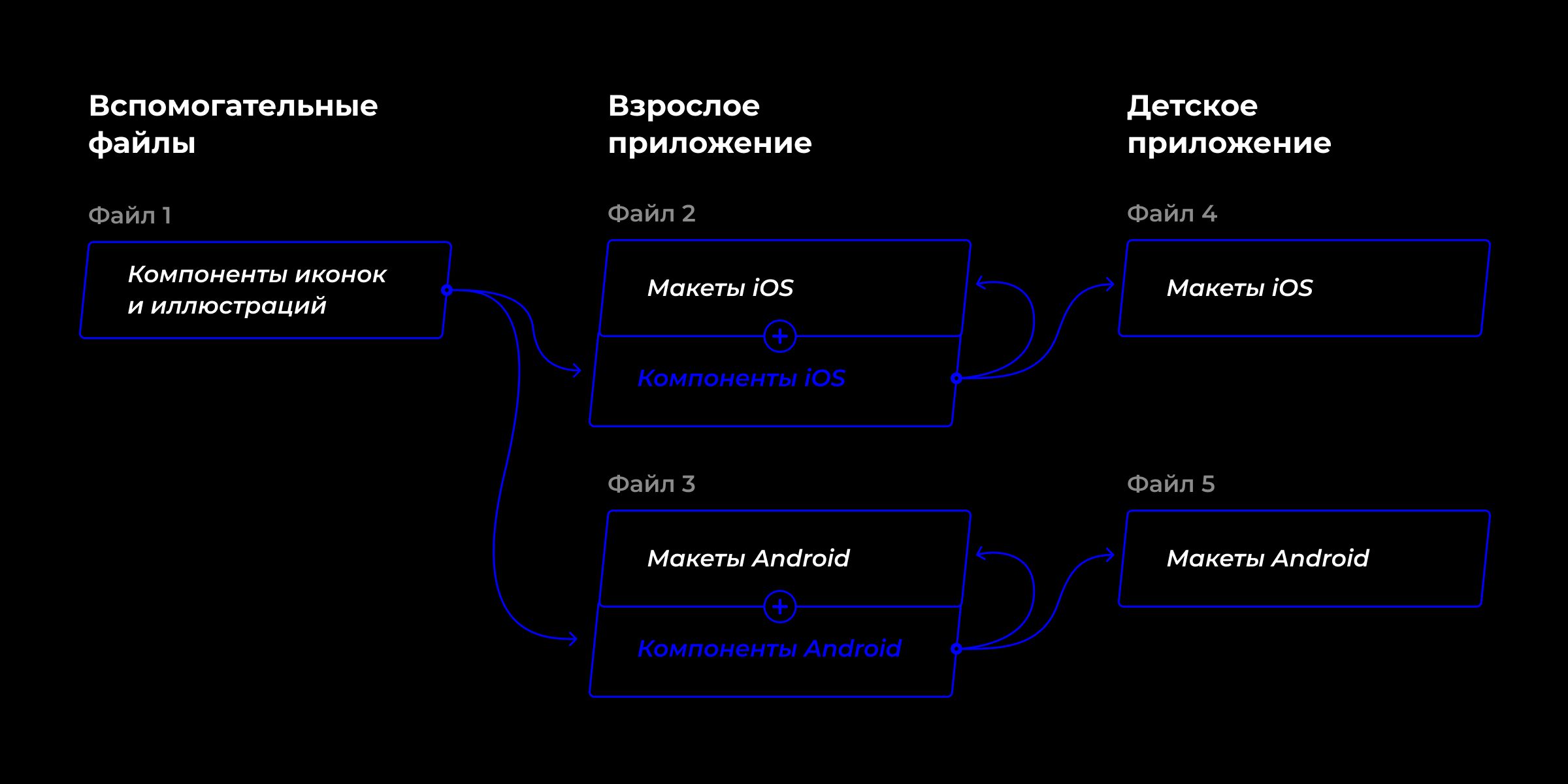
We stored master components in the same file as layouts. At the start of the project, this seemed reasonable and convenient: no need to switch files to move an icon two pixels. We thought that, if necessary, we could split the file later: leave master components in one file and move layouts with child components to separate files.
However, we were unaware of a fundamental Figma bug, which we will describe later. For now, let’s look at two ways to split a large file into smaller ones.
Method #1
Duplicate the file as many times as needed and remove unnecessary layouts or pages from each duplicate.
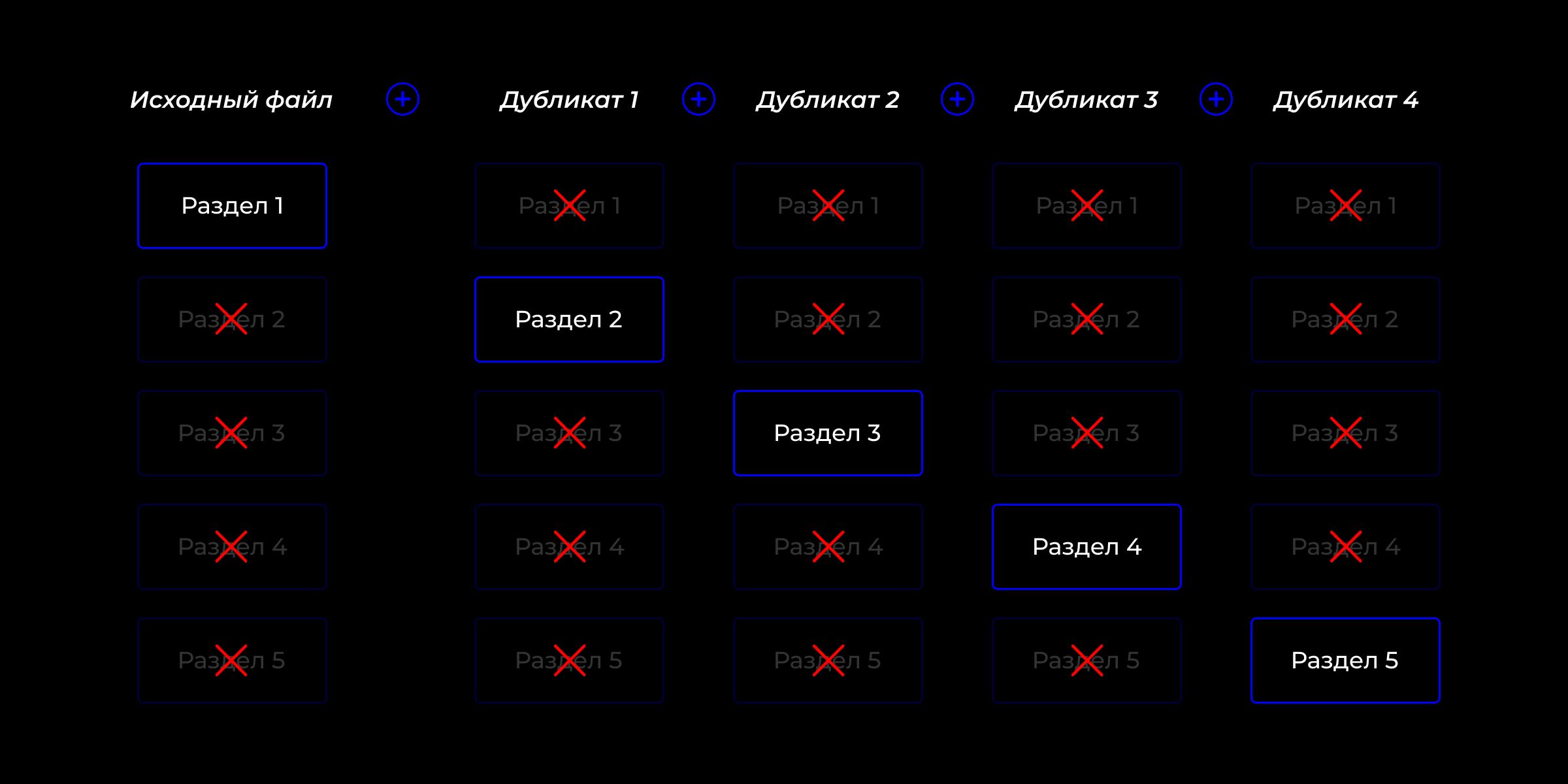
This method didn’t work for us because master components were in the same file as layouts and would lose connection with child components in the new files.
Method #2
Create several new files, connect them to the team library, and copy the necessary layouts from the original file. Keep only master components in the original file, since unlike child components, they cannot be moved to another file — a frustrating Figma limitation we knew about.
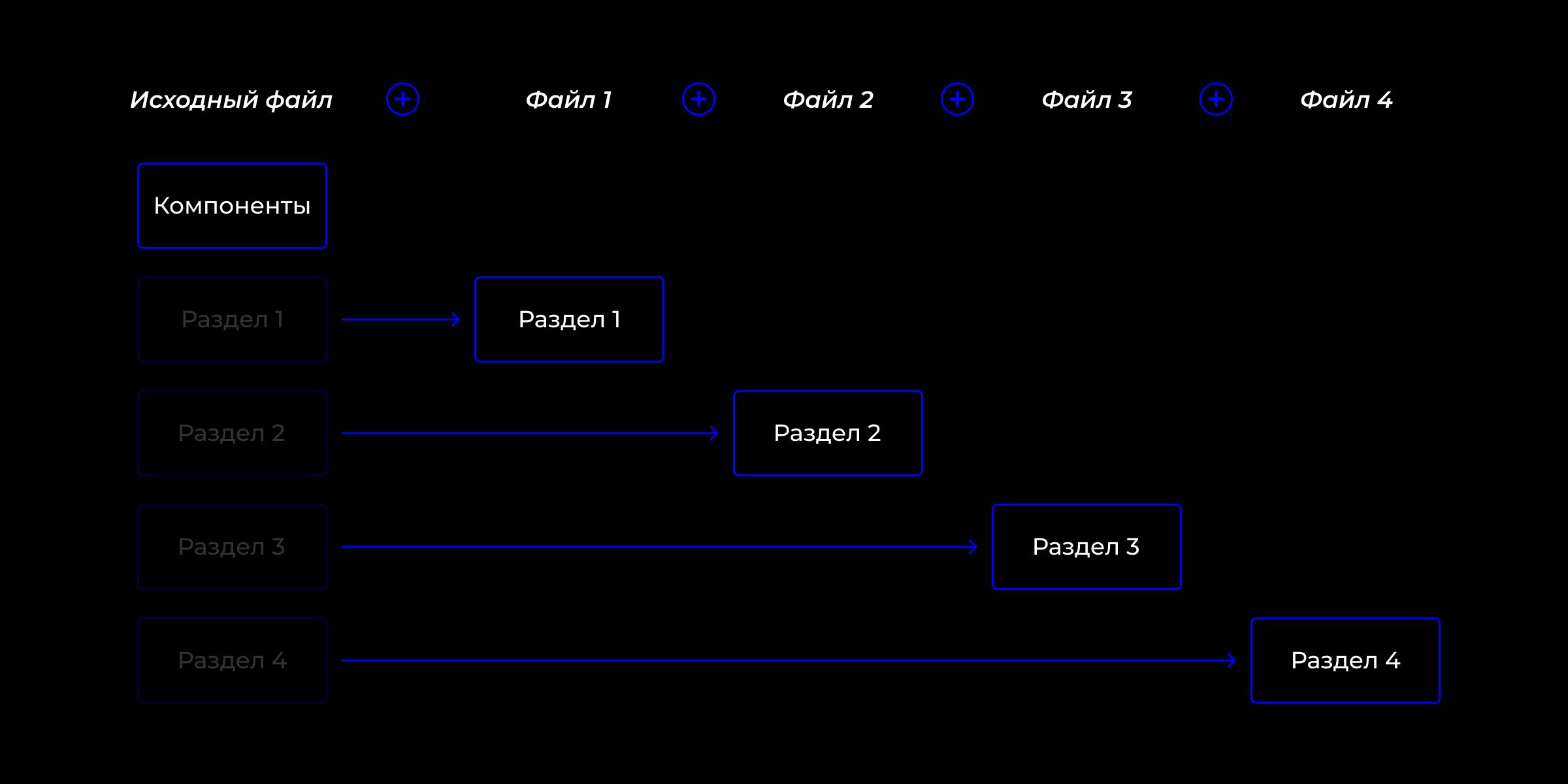
This method seems feasible and doesn’t violate any obvious Figma rules.
However, we didn’t know about a serious hidden issue: when moving layouts to a new file, many child components lose their connection to the master component. In other words, some copied child components become regular frames upon pasting. This is the fundamental bug that Figma is aware of and has been trying to fix for about two years. More details about the problem .
Such bugs can occur even when copying and pasting a layout within the same file via “⌘+C → ⌘+V” or “Copy → Paste.” We noticed it often happens with complex components and when components have been copied and pasted multiple times.
To avoid this bug, copy complex multi-part components while holding Opt/Alt.
We couldn’t quickly split the file and resolve the first cause of slowdowns, so we moved to the second cause.
Cause 2: Master components built with many hidden layers
Some elements are used almost in every layout and differ only in details — for example, lists. A list may have an icon or not, one header or a header with a subheader, a sum with subheader or without, a button instead of a sum, or an arrow instead of a button.
Don’t forget loading states and the same states on a dark background. The element height remains the same, the main elements are roughly the same, but their combinations and arrangements differ.
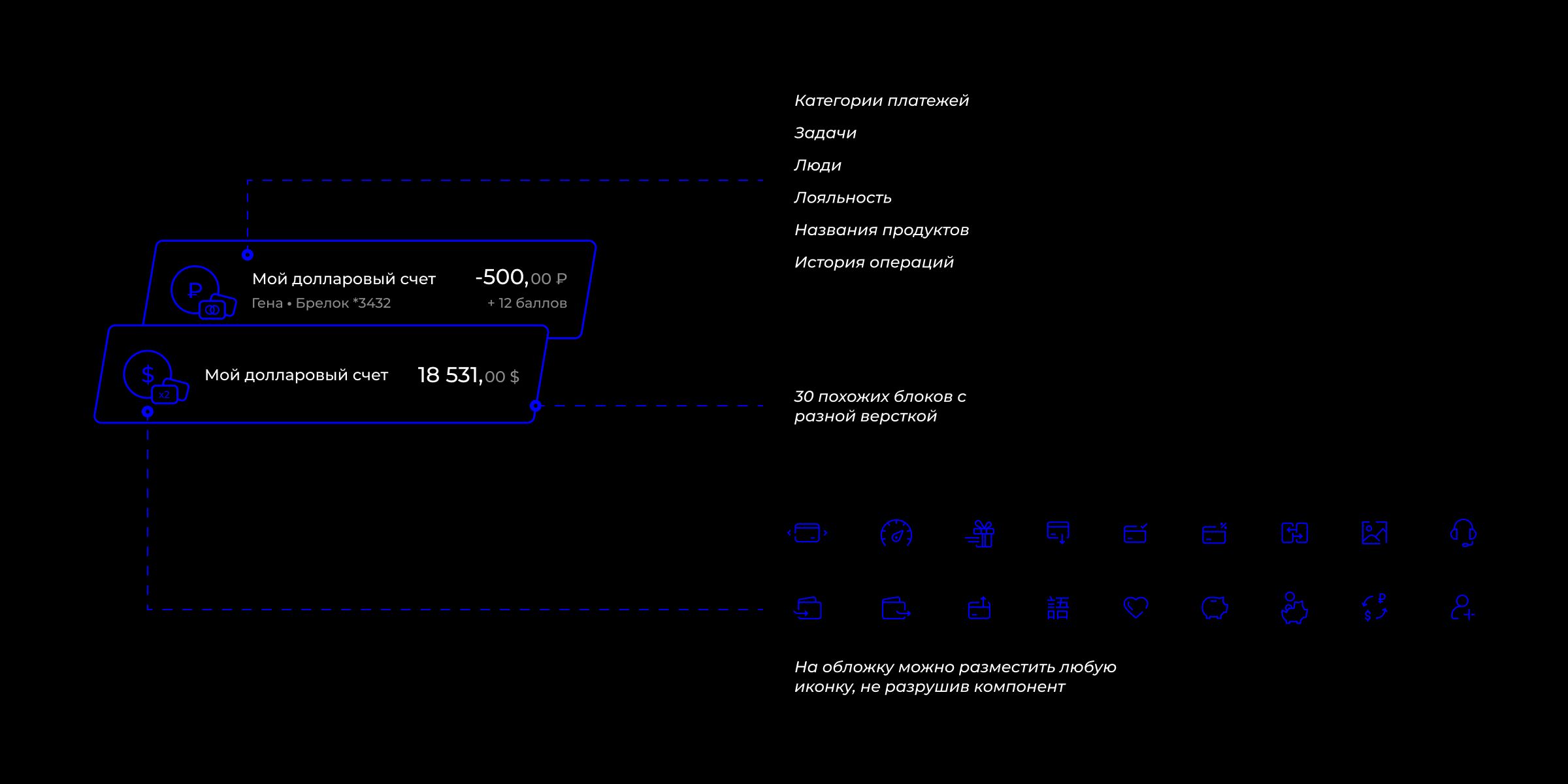
For example, we had over thirty variations of a 64px-high list block in our app. Plus, each state could have about 100 different icons on the cover.
When creating initial components, we considered two approaches for design system construction.
Method #1
Create one component and include all states as hidden layers.
We did this at first. It seemed convenient: no need to create many library layouts, and switching states was easier in the layer panel by toggling visibility.
It’s important to name layers and layer groups clearly. Initially, this seemed convenient for all designers.
However, in Figma, a child component is not just a reference to a master component but a full instance that occupies memory and carries all hidden layers. One instance “dragged” thirty hidden layers with it, increasing file size.
Method #2
Create a separate master component for each case.
Only layout variations are considered: if the same layout has fifty states differing only by an icon, insert that icon as a nested component (matryoshka principle).
ЗReplacing the icon takes a few clicks in the component panel. Other blocks can be swapped the same way — switches, checkboxes, radio buttons, etc.
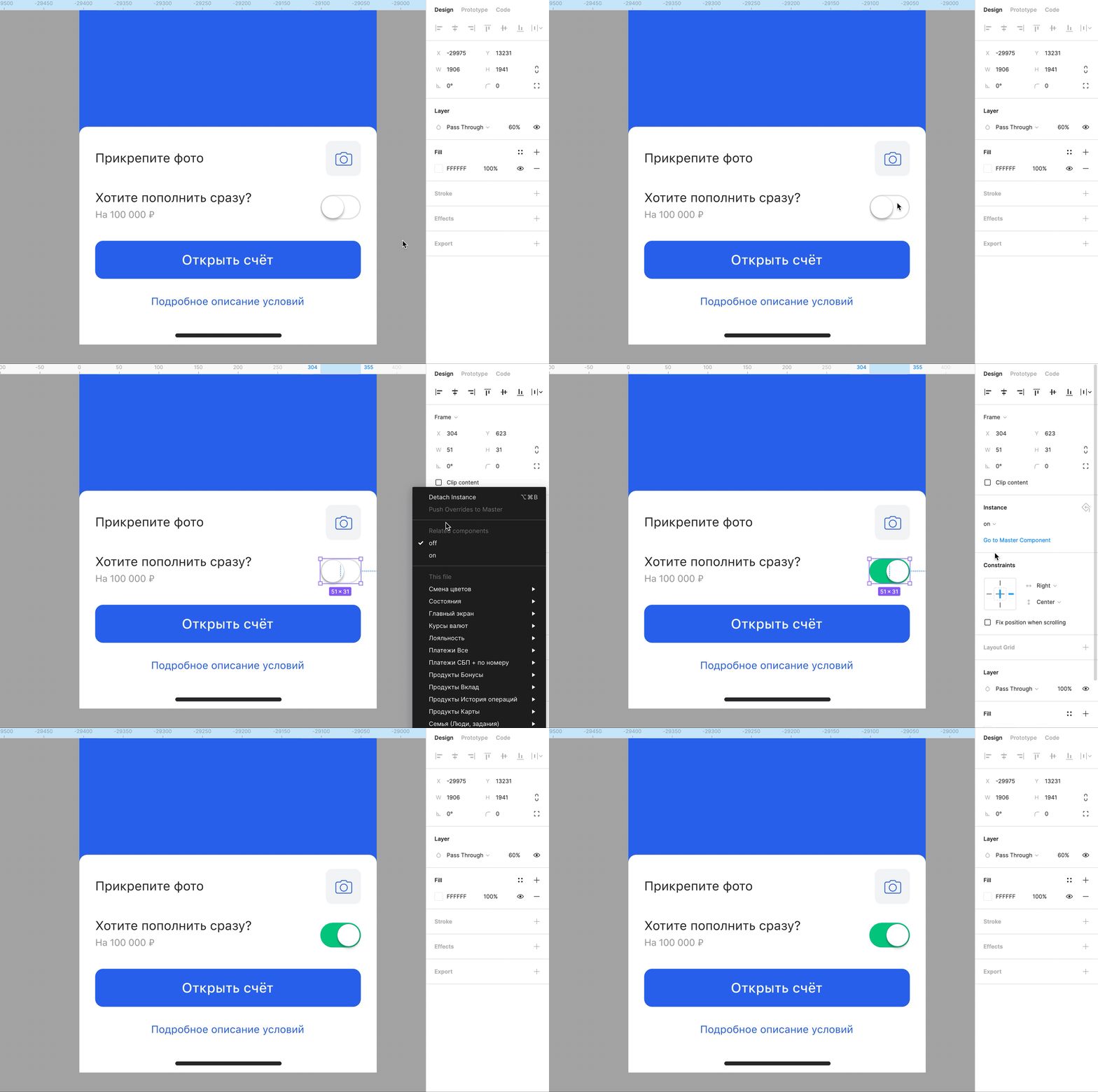
Initially, we chose method #1 — “super-components” with all states as hidden layers. This increased layers and file size. The better solution was method #2: create a separate component for each state.
Next, we optimized the project: move master components to a separate file and optimize their structure — remove unnecessary layers, make each state a separate component. This solved multiple problems: reduced overall project weight and created a system of files that can be easily split in the future.
We decided not to redo existing components but to rebuild the project from scratch, screen by screen. Besides solving the main task, we could clean up layouts from unnecessary layers and artifacts.
Workflow
We worked on a “live” project with developers, analysts, testers, and client representatives involved. One designer handled the optimization while also developing new features and supporting development.
Reworking two platforms took about a month. We logged key file metrics and took screenshots of Figma’s resource usage (View > Resource Use) after closing each section. So, what did we achieve?


More articles
Next article
The Hidden Power of Daily User Scenarios in Digital Services
We started researching online banks three years ago with one clear goal, which we still pursue today: to produce work that helps identify the strengths and weaknesses of online banks and understand how they impact the everyday tasks of small and medium-sized businesses (SMBs).

